

If this fails, use the camera trick: Open camera from lock screen, take a photo, share to Google Drive → then access settings via Drive’s three-dot menu.
Flash official stock firmware (this may or may not remove FRP — often it doesn't on Android 11):
If you just need to remove the account because you’re selling the phone, do it normally via phone settings (no PC needed). The PC is only for FRP bypass after a reset or for screen-lock situations.
Would you like a more detailed guide for one specific scenario (e.g., FRP bypass with a particular tool)?
Para quitar la cuenta de Google (FRP) en un ZTE Blade L9 con Android 11
utilizando una PC, existen herramientas especializadas y métodos manuales efectivos. Método con PC (Herramientas Especializadas)
Si prefieres usar una computadora, puedes utilizar software diseñado para saltar el bloqueo de FRP: Herramientas de desbloqueo: Software como el Screen Unlock de Dr.Fone
permite conectar el teléfono vía USB, seleccionar el modelo y seguir las instrucciones en pantalla para eliminar el bloqueo. Archivos Flash:
Algunos métodos avanzados implican cargar un archivo específico (formato quitar cuenta google zte blade l9 android 11 con pc
o similar) mediante programas de servicio técnico para resetear la partición de la cuenta. Método Manual (Sin PC)
Muchos usuarios prefieren este método por ser gratuito y no requerir cables. El proceso general en Android 11 para este modelo suele ser: Conexión a Red: Conecta el equipo a una red Wi-Fi. Acceso a Emergencia:
Ve a "Información de emergencia", presiona el ícono del lápiz y entra en las opciones de imagen del propietario. Navegación a Ajustes:
Desde allí, accede a la "Galería Go" y busca la sección de permisos. Esto te permitirá buscar "Aplicaciones" en la barra de búsqueda de configuración. Inhabilitar Servicios: Debes "Forzar detención" e "Inhabilitar" los Servicios de Google Play Configuración de Android Configuración sin conexión:
Reinicia el teléfono e intenta configurar el equipo; ahora debería aparecer la opción "Configurar sin conexión". Rehabilitar y Finalizar:
Vuelve a entrar por el menú de emergencia para habilitar los Servicios de Google Play y termina la configuración. Se recomienda hacer un restablecimiento de fábrica final desde el menú de ajustes para limpiar errores.
¿Prefieres que te detalle los pasos de alguna herramienta de PC específica o necesitas ayuda con el método manual?
Quitar la cuenta de Google (FRP) en el ZTE Blade L9 con Android 11 se logra eficientemente utilizando Unlock Tool para procesadores SPD, lo que permite un proceso automatizado de eliminación de cuenta vía PC. Alternativamente, métodos manuales inhabilitando servicios de Google a través de permisos de galería permiten el bypass sin necesidad de herramientas de pago. Para una guía en video del proceso con Unlock Tool, consulte YouTube. Eliminar Cuenta Google ZTE L9 Android 11 Fácil y Rápido If this fails, use the camera trick: Open
The story of bypassing a Google account (FRP lock) on a ZTE Blade L9 Android 11
often begins with a user who has performed a factory reset and finds themselves locked out because they cannot remember their previous credentials. While many users look for a PC-based solution, the most common and effective "story" for this specific model actually involves a manual, on-device bypass method that simulates a "no PC" approach. The Standard "Rescue" Method (Manual Bypass)
Most successful attempts follow this sequence to "trick" the system into skipping the account verification: Preparation : Start by connecting to a stable Wi-Fi network and returning to the initial "Welcome" screen. Emergency Access : Users typically enter the Emergency Call
menu, tap on "Emergency Information" twice, and then edit the owner profile image to navigate into the device's hidden settings via Gallery Go permissions. App Inactivation
: Once in the app settings, you must disable critical system processes: Android Setup (Force stop). Google Play Services (Disable and Force stop). The "Offline" Trick : After restarting, the phone should now allow a "Set up offline" Final Restoration
: Once the home screen is reached, you must go back into settings to re-enable Google Play Services
and then perform a final factory reset from the menu to clear all remaining errors. PC-Based Alternatives
If a manual bypass fails, technicians often turn to specialized PC software. These tools generally require the phone to be in a specific mode (like ) to communicate with the PC. Octoplus FRP Tool Flash official stock firmware (this may or may
: This is a professional-grade software often mentioned for ZTE devices. It typically requires a specific "Google Account Manager APK" or direct interface commands to clear the FRP partition. Generic FRP Unlockers
: Various free "FRP Bypass" programs exist on forums like XDA or specialized GSM sites, though they carry higher security risks and may require specific USB drivers for the ZTE chipset. Important Considerations Security Patches
: The effectiveness of these methods depends on the date of your security patch; newer updates may have patched older manual exploits. : A factory reset will erase all local data on the device. Official Route
: If you have proof of purchase, the most secure "story" is visiting an authorized service center or using the Google Account Recovery
Quitar la cuenta de Google de un ZTE Blade L9 con Android 11 utilizando un PC puede ser un proceso un poco complejo debido a las medidas de seguridad implementadas por Google y el fabricante del dispositivo. A continuación, te proporcionaré una guía detallada sobre cómo proceder, pero ten en cuenta que este proceso puede variar según la versión específica de tu dispositivo y la configuración de tu cuenta.
Ejecución de la herramienta: Sigue las instrucciones de la herramienta para detectar el dispositivo y proceder con el proceso de eliminación de la cuenta de Google. Este proceso puede variar significativamente dependiendo de la herramienta.
Reinicio del dispositivo: Una vez completado el proceso, reinicia el dispositivo.


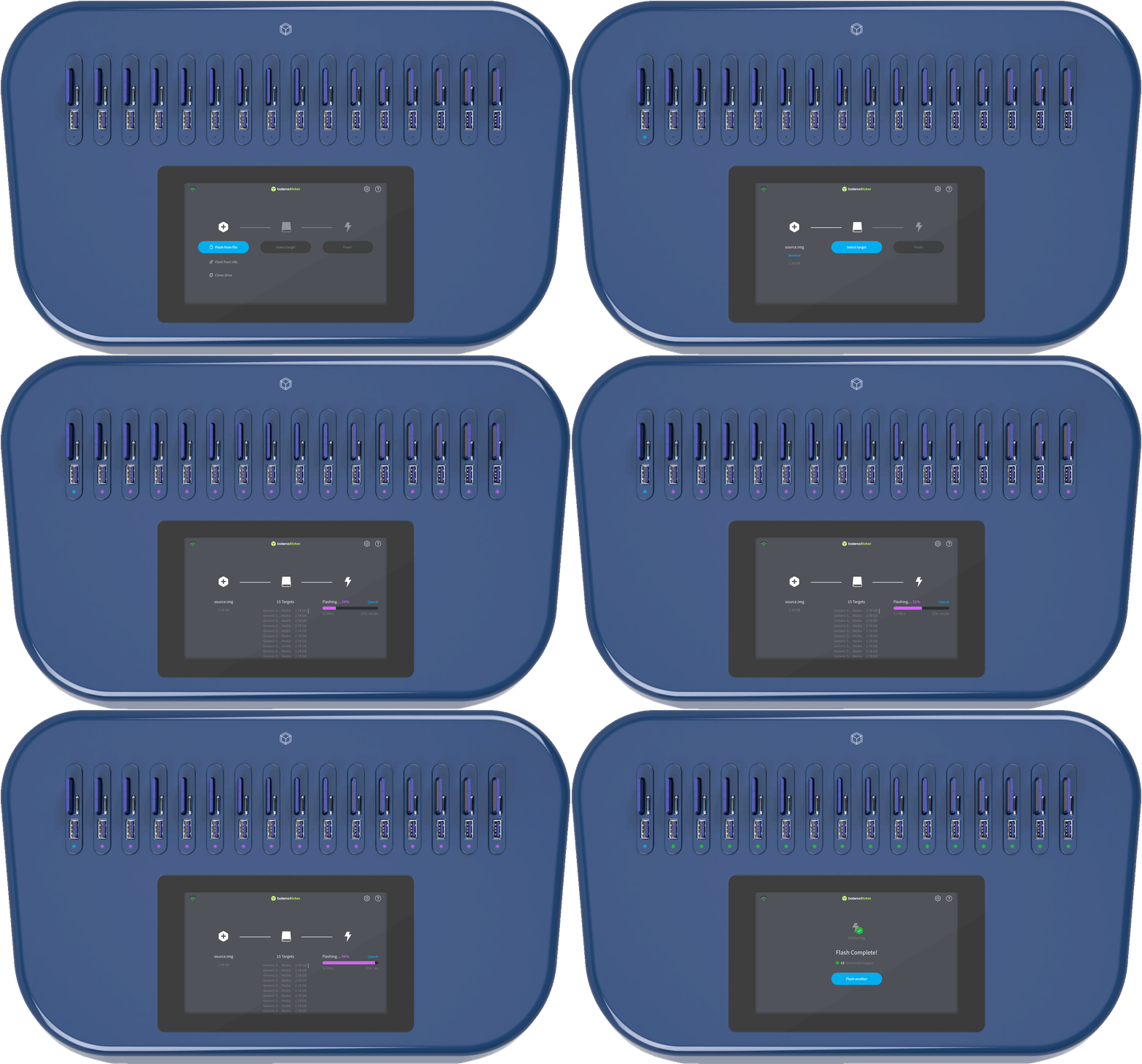
Every EtcherPro can flash up to 16 drives at a time if you are flashing from an online source. If you are flashing from a physical drive, you would be flashing up to 15 drives at a time, as the first slot would serve as the source. In the daisy-chaining scenario, you would only require one slot to serve as a source to flash the entire stack, when flashing from a physical drive.
EtcherPro offers USB (type A), SD and microSD interfaces by default, so you can flash up to 16 different drives / devices simultaneously. For instance, you can flash a balenaFin, a USB drive, an SD card and a microSD at the same time, as long as there is only one target per slot, and the source being flashed is the same for all target types.
EtcherPro supports USB (type A), SD and microSD interfaces, and can also flash single-board computers that are capable of being flashed via USB, as long as they are supported by Etcher. You can flash compute modules through carrier boards, for instance, flashing a Raspberry Pi CM3 through a balenaFin.
EtcherPro runs our open-source data-flashing software, Etcher, which can flash any kind of data. If you want to make sure that Etcher is capable of flashing your drive / device, you can download the latest version of Etcher and test it on your system to ensure compatibility.
When writing 16 drives simultaneously, EtcherPro can write up to 52 MB/s per drive, while when writing just 1 drive, EtcherPro can reach up to 200MB/s, so long as the drive / device can support those flashing speeds.
Etcher has a feature known as ‘trimming’ which can potentially accelerate the flashing of certain images by avoiding writing unused parts of ext partitions. As a result, you effectively get a bonus on the flashing speed.
EtcherPro flashes all target drives simultaneously, as such, the speed is determined by the drive that writes slowest. If you flash 1 drive that writes slowly, and 15 fast ones, the slow drive will determine the overall write speed. To account for this, make sure that all the drives, including the source drive (if any), can write at least as fast as EtcherPro flashes (52MB/s for 16 drives). Oftentimes, the advertised speed for a drive is the reading speed, rather than the writing speed (which is much slower). If you are sure your setup is up to spec and you still have issues please contact us.


.webp)